



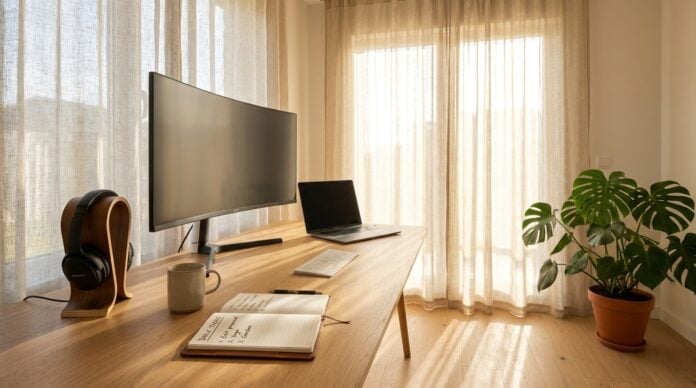
Working from home has transformed the way people communicate throughout the week. Remote meetings, virtual presentations, community podcasts, and casual video chats with friends have become routine parts of modern daily life. Yet many individuals struggle with echo, muffled speech, and distracting background noises that interrupt their conversations.
Creating a dependable environment for voice and video communication does not demand an expensive commercial recording facility. With thoughtful space planning, basic acoustic adjustments, and reliable computing equipment, anyone can assemble an organized, comfortable workspace that delivers clean, intelligible audio on every call.
Choosing the Right Space in Your Living Area
The first step in planning a dedicated audio corner is finding a location that minimizes unwanted environmental sound. Living areas that face busy streets, high-traffic hallways, or noisy kitchen appliances present constant challenges for sensitive audio gear. Look for a secluded corner, a spare bedroom, or even a finished walk-in closet where solid walls help buffer outside disturbances.
Room geometry also plays a role in how natural your voice sounds. Square rooms with bare drywall and tall ceilings tend to trap low frequencies and bounce sound waves across parallel surfaces, producing an unpleasant hollow ringing. Rooms with irregular dimensions, built-in shelving, or soft carpeting naturally reduce these harsh flutter echoes before you even plug in your equipment.
If you are planning your workspace in an attached garage, garden suite, or ground-floor bonus room, structural insulation and network connectivity require careful attention. For households converting a front-facing room or separate garage workshop, you can read our earlier guide on building a safer and connected driveway to ensure your network wiring and exterior security integrate smoothly with your indoor workstation.
Managing Sound Reflections and Room Acoustics
Acoustic treatment is often overlooked by casual callers, but it represents the single most effective way to improve clarity. Hard surfaces like uncovered hardwood floors, glass window panes, and empty desks reflect vocal frequencies back into your recording zone. When these bouncing sound waves reach your receiver alongside your original voice, the resulting audio can sound distant and muddy.
You do not need industrial materials to address surface reflections. Everyday household furnishings can absorb sound effectively. Placing a thick area rug beneath your desk helps dampen footfalls and floor reflections. Hanging heavy curtains over windows blocks external neighborhood commotion while softening the acoustic impact of rigid glass panels.
Bookshelves filled with books of varying depths make wonderful natural diffusers. Instead of bouncing sound directly back toward you, an uneven bookshelf scatters sound waves in multiple directions, creating a warmer, more balanced room tone. Adding a soft armchair or decorative fabric wall hanging will further tame harsh reverberation without making the room look like an industrial studio.
Selecting and Positioning Your Audio Hardware
While built-in computer microphones are convenient, they typically capture excessive room noise, keyboard clicks, and internal cooling fan whir. Investing in a dedicated external microphone immediately elevates the crispness of your speech and allows your listeners to focus on your message rather than room ambience.
Choosing between dynamic and condenser models depends largely on your room conditions. Dynamic units excel in typical home settings because they reject ambient background noise and focus on sounds generated right in front of the capsule. Condenser units offer rich detail but can pick up subtle room sounds if your space is untreated. Finding an appropriate capsule design and mounting solution makes a noticeable difference, and you can explore detailed equipment overviews through Microphone Authority to find models tailored to your acoustic surroundings.
Proper positioning is just as vital as the hardware itself. Placing your microphone several inches away from your mouth, slightly off to the side, prevents vocal plosives—the harsh bursts of air caused by hard consonants. Using an adjustable boom arm keeps the unit steady while isolating it from desk vibrations caused by typing or moving a computer mouse.
Optimizing Your Computer for Stable Broadcasts
Even premium audio hardware will falter if the host computer struggles with software overhead or system instability. Clear audio requires consistent data processing without interruptions, audio dropouts, or sudden latency spikes. Preparing your machine before starting an important video call or recording session ensures smooth, predictable performance.
Begin by auditing the programs running quietly in the background. Cloud synchronization services, browser tabs with active media streams, and scheduled antivirus scans consume processor cycles and network bandwidth. Closing unnecessary applications frees up processing headroom and keeps system cooling fans running quietly, which in turn keeps your recording area peaceful.
Operating system updates and driver maintenance also keep digital sound devices communicating properly. When background latency, driver conflicts, or system performance bottlenecks interfere with your voice feeds, checking troubleshooting tips on Free-pc-guides.com can help resolve operating system hiccups without fuss. Keeping your audio drivers updated and your audio input gain properly calibrated prevents unexpected digital clipping during lively conversations.
Simple Daily Habits for Consistent Sound Quality
Maintaining a high-quality call environment becomes second nature when you incorporate a few quick checks into your daily routine. Taking a few moments to review your surroundings and test your gear before meeting clients or friends saves valuable time and avoids distracting technical delays.
A dependable pre-call checklist can include the following practical steps:
- Confirm that your primary external microphone is selected in your meeting software rather than the default laptop input.
- Close nearby windows, doors, and interior vents to block sudden outside drafts and domestic sounds.
- Wear comfortable closed-back headphones so your microphone does not capture audio coming from your desktop speakers.
- Position your notes and reference materials at eye level so you do not turn your head away from the microphone while speaking.
- Keep a glass of water nearby to keep your voice clear and hydrated throughout longer speaking engagements.
These straightforward habits eliminate the most common causes of accidental distortion and feedback. Using headphones is particularly helpful because it prevents loopback echoes, ensuring that everyone on the call experiences balanced audio without awkward pauses.
Creating a Comfortable and Functional Desk Setup
Physical comfort directly influences vocal stamina and posture. Slouching toward a distant monitor constricts airflow, causing vocal fatigue during lengthy discussions. Organizing your desk layout so that your screen, keyboard, and microphone align naturally promotes upright posture and smoother breathing.
Cable management also supports a trouble-free workspace. Loose audio cords and power cables draped across a desk create physical clutter and can introduce unwanted electrical hum if unshielded audio lines rest against high-draw power adapters. Securing cables beneath your desktop with reusable hook-and-loop ties keeps the entire area safe, clean, and visually calm.
Lighting complements your vocal presence on video calls. Placing a soft, indirect light source behind your monitor provides pleasant illumination without harsh glare. When your visual presentation matches the clarity of your audio, you project confidence and ease, making every virtual interaction more rewarding for everyone involved.